Representing images: pixels and bitmaps
플레이하며 배우기
이 문제들을 풀어 에너지를 얻은 뒤 낚시하고 탐험하세요. 계정이 필요 없어요.
교육자를 위해: Representing images: pixels and bitmaps(KS3 Computing, Computer Systems)을(를) 위한 바로 쓸 수 있는 수업 슬라이드, 복습 노트, 다이어그램 — 수업에 사용하거나, 학습자들이 실시간 게임으로 즐기는 인터랙티브 클래스 활동으로 진행하세요.
수업 노트
What is a Bitmap Image?
- A bitmap image (also called a raster image) is made up of a rectangular grid of tiny coloured squares called pixels.
- Each pixel stores the exact colour of that tiny area, so bitmaps are great for photographs and images with complex colours and fine detail.
- Unlike vector graphics (which use mathematical formulas for shapes), bitmaps store colour information for every single pixel.
- The word 'raster' comes from the Latin×rastrum×(a rake) and relates to how old CRT monitors drew images line by line.
Key Characteristics: Resolution and Colour Depth
- A bitmap is defined by its dimensions (width and height in pixels) and its colour depth (number of bits per pixel).
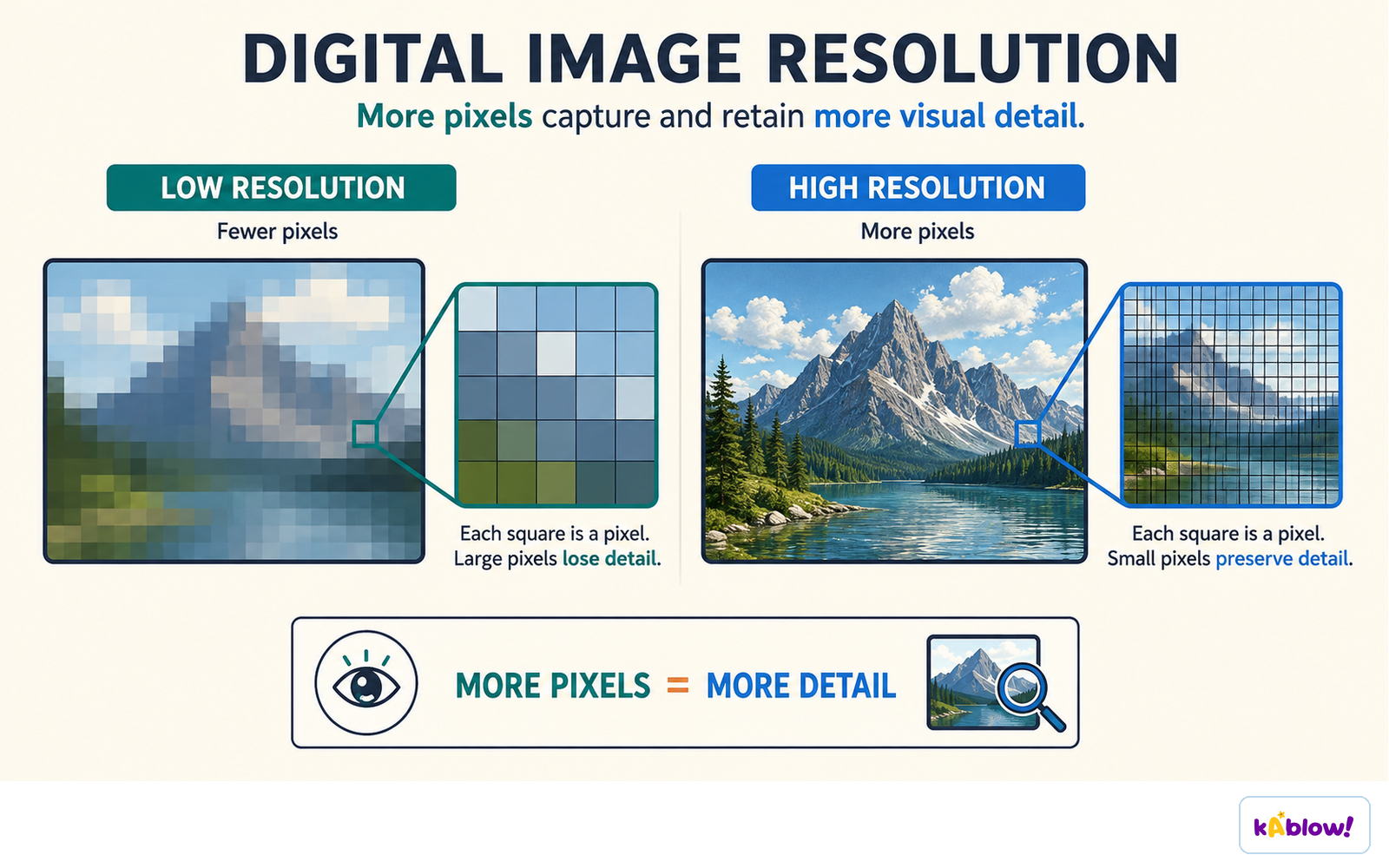
- Resolution refers to the number of pixels in the image – often given as width × height (e.g., 1920 × 1080). Higher resolution means more detail but larger file size.
- Colour depth (also called bit depth) is the number of bits used to store the colour of each pixel.
- A 1-bit image can only show 2 colours (usually black and white) because 21 = 2.
- An 8-bit image can show 256 colours (28 = 256).
- A 24-bit image uses 8 bits for each of the red, green, and blue channels, giving over 16 million possible colours (224 = 16,777,216).
More pixels capture and keep more detail; fewer pixels lose it.
How Colour Depth Affects the Image
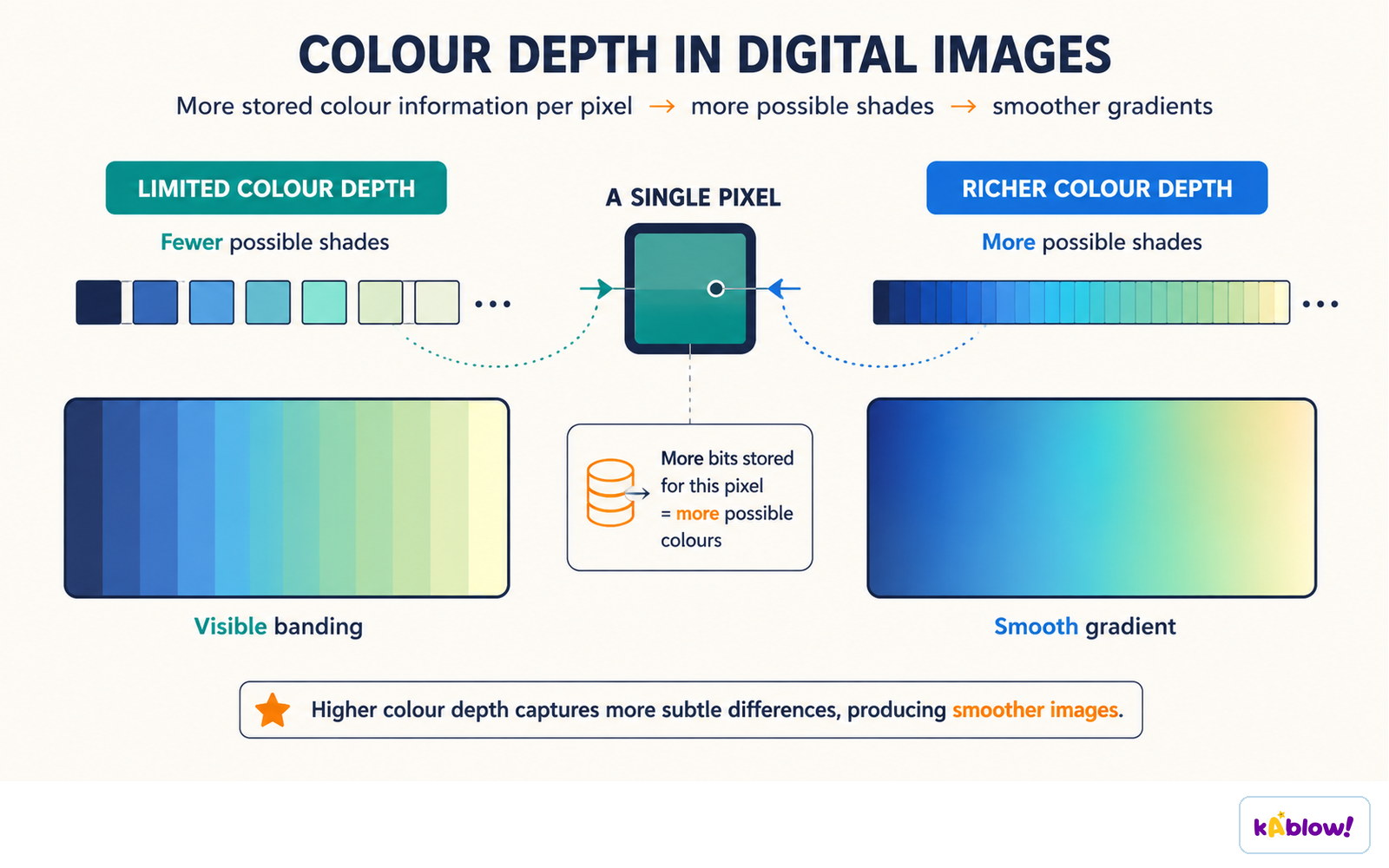
- Higher colour depth means more possible colours, so the image can look more realistic and smooth.
- Lower colour depth reduces the number of colours, which can cause banding or visible jumps between shades.
- For example, a 4-bit image can only show 16 colours, which might be enough for simple graphics but not for photos.
- Most modern colour formats use 24-bit colour (true colour) for high-quality images.
More bits stored per pixel means more possible shades and smoother gradients.
Estimating File Size of a Bitmap
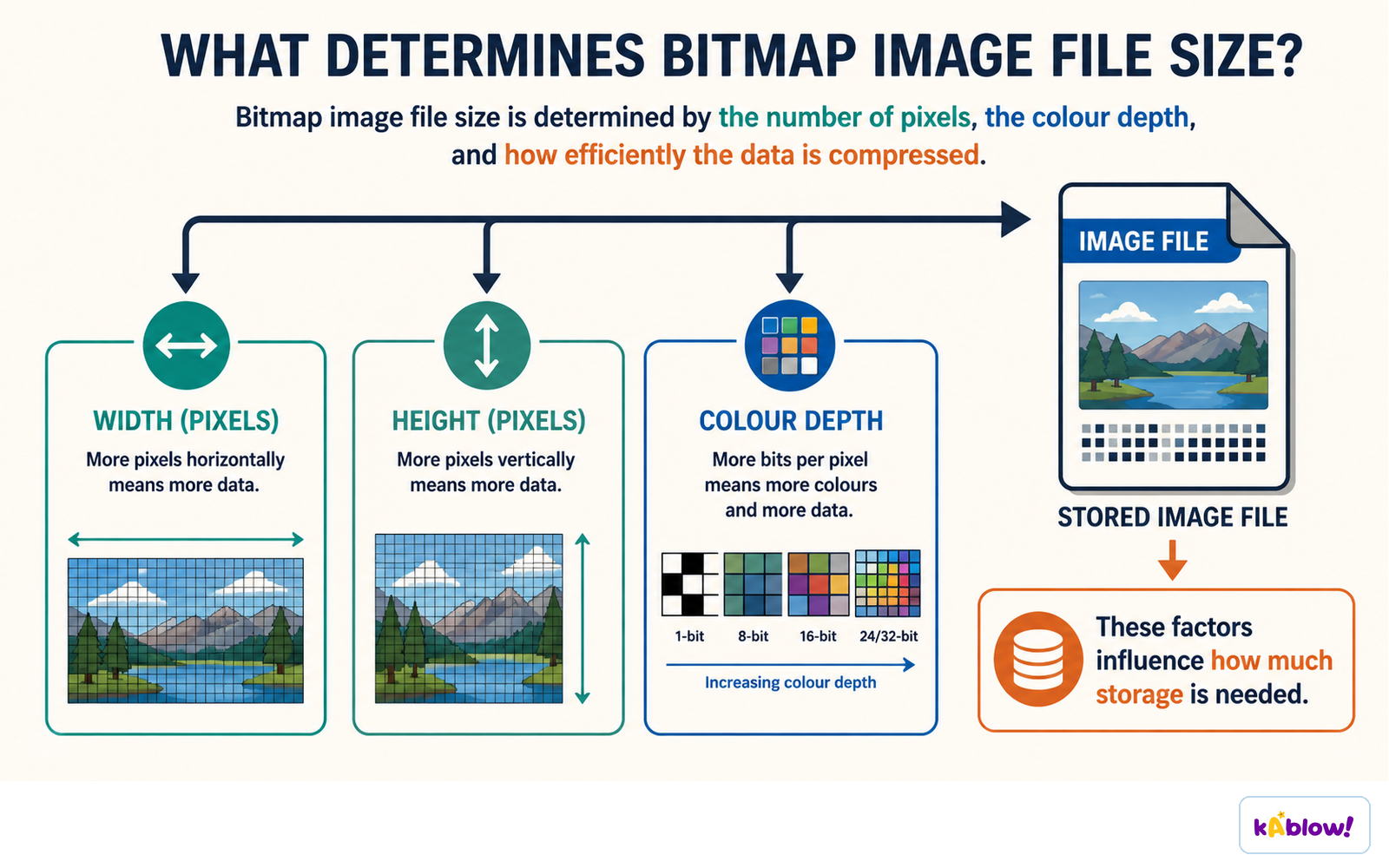
- The file size of an uncompressed bitmap depends on the total number of pixels and the colour depth.
- Formula: file size (in bits) = width × height × colour depth (bits per pixel).
- To get the size in bytes, divide the number of bits by 8.
- Example: A 100 × 100 image with 24-bit colour has 100 × 100 × 24 = 240,000 bits = 30,000 bytes (about 30 KB).
- Increasing either resolution or colour depth will increase the file size.
Bitmap file size depends on width, height and colour depth, and on how efficiently the data is compressed.
Effects of Changing Resolution and Depth
- Increasing resolution (more pixels) adds detail but makes the file larger.
- Decreasing resolution reduces file size but can make the image look blocky or pixelated when enlarged.
- Increasing colour depth improves colour accuracy but also increases file size.
- Decreasing colour depth reduces file size but may make colours look flat or banded.
- There is a trade-off: you must balance quality against storage space.
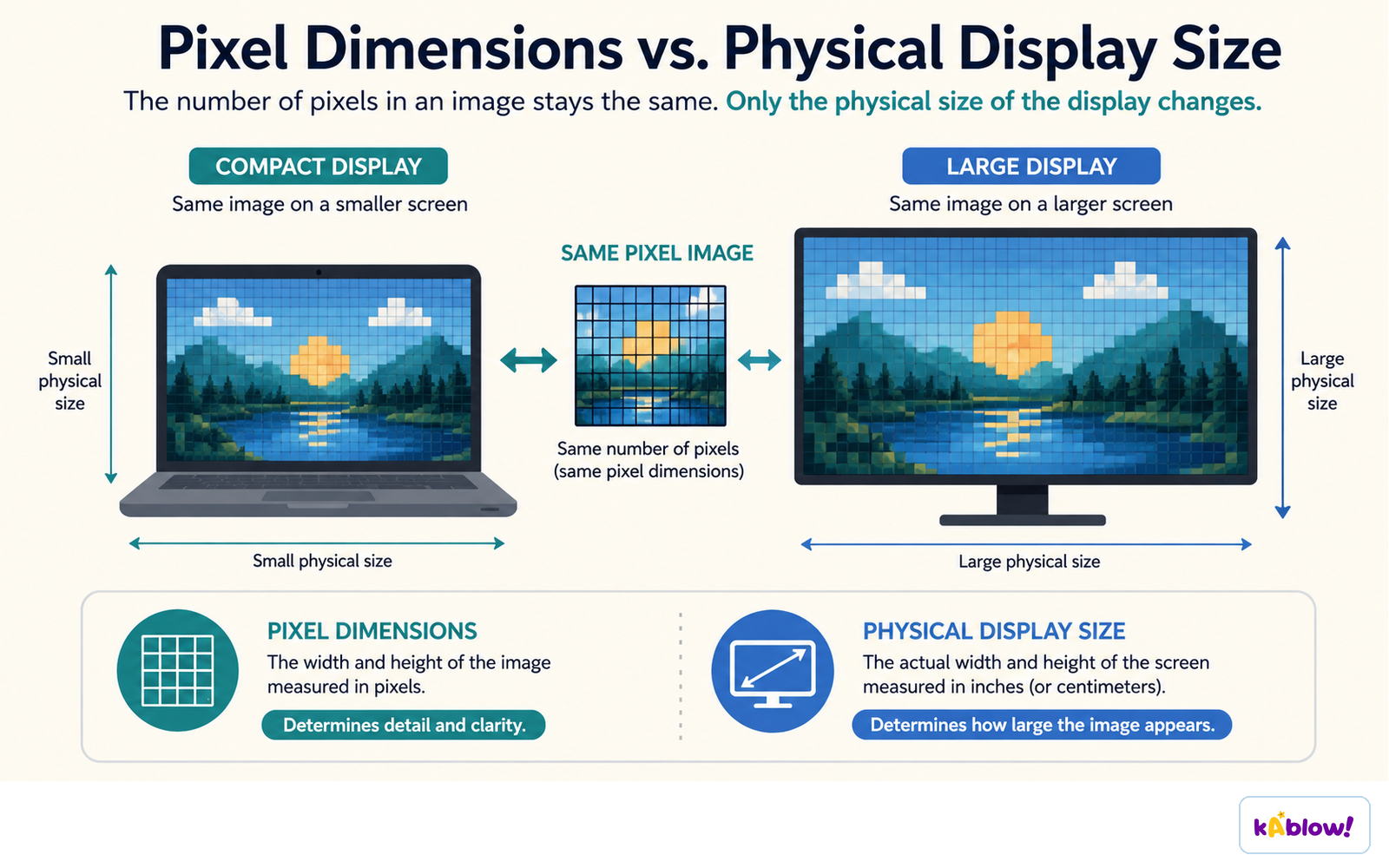
The pixel dimensions of an image do not change when the physical size of the display does.
Pixel Formats
- Common pixel formats include binary (black and white), grayscale, palettized (using a colour lookup table), and full-colour (e.g., 24-bit RGB).
- Binary images use 1 bit per pixel – only two colours.
- Grayscale images use shades of grey, often 8 bits per pixel (256 shades).
- Palettized images use a limited set of colours stored in a table; each pixel stores an index into that table.
- Full-colour images typically use 24 bits per pixel, with 8 bits for red, green, and blue.
How Bitmaps are Stored in Files
- The grid of pixels is stored in a row-major order: the top row is written left to right, then the second row, and so on.
- A file header contains essential information like the number of columns and the pixel datatype (bits per value).
- Headers may also include the number of rows and other metadata (e.g., camera settings in Exif).
- Without the header, the computer wouldn't know how to reconstruct the 2D grid from the serial list of numbers.
Compression: Making Files Smaller
- High-resolution bitmaps can be very large, so compression is used to reduce file size.
- Lossless compression (e.g., PNG, GIF, RLE) preserves every pixel exactly – the original can be perfectly restored.
- Lossy compression (e.g., JPEG) discards some detail to achieve smaller files – the original cannot be perfectly restored.
- Run-length encoding (RLE) replaces repeated values with a count and the value – efficient for images with large areas of the same colour (like line drawings).
- For photographs, RLE can make the file larger because pixels are rarely identical, so other methods like JPEG are used.
A bitmap image is a grid of pixels, and each pixel colour is stored as binary.
슬라이드
연습 문제
무료 미리 보기 — 63개 중 8개 문제. 가입하면 전부 볼 수 있어요.
1.A bitmap image is made up of a rectangular grid of pixels.
EasyTrue or false?
2.What does the term 'pixel' stand for?
Easy- Apicture element
- Bpixel element
- Cpoint element
- Dpicture electron
3.Vector graphics store the exact color of each pixel.
EasyTrue or false?
4.Which of the following is NOT a common raster image file format?
Easy- AGIF
- BJPEG
- CPNG
- DSVG
5.A higher color depth allows an image to display more distinct colors.
EasyTrue or false?
6.In a 24-bit color image, how many bits are typically used for each of the red, green, and blue channels?
Medium- A8 bits each
- B6 bits each
- C12 bits each
- D4 bits each
7.Run-length encoding (RLE) is always a lossless compression method.
MediumTrue or false?
8.An image has a resolution of 100 pixels wide and 200 pixels high. How many pixels in total?
Medium- A20000
- B300
- C10000
- D200
기출 문제
이 주제의 기출 문제 연습이 곧 나와요.
곧 출시